Welcome to NoteKash! You’re not just opening an app; you’re unlocking the potential to build a Second Brain—a private, powerful, and permanent digital extension of your own mind. This is where your fleeting thoughts transform into connected ideas, and your learning becomes lasting knowledge.
This guide is your complete roadmap. We’ll journey from the simple act of writing your first note to mastering the most advanced workflows, turning you into a NoteKash power-user. Let’s begin the journey of unlocking your second brain.
Table of Contents
Chapter 1: First Steps – Forging the Foundation
Your initial setup is simple but crucial. It establishes the core philosophy of NoteKash: your data belongs to you.
Choosing Your Home Folder (The Local-First Philosophy)
The very first thing NoteKash will ask is to Select a Folder. This is the most important step.

- Click the “Select a Folder” button.
- Choose a location on your computer that is safe, secure, and easy for you to remember (e.g., inside your “Documents” folder).
Key Concept: Local-First & Data Ownership Unlike cloud-based apps that store your notes on their servers, NoteKash saves everything as clean, human-readable .json files directly in the folder you choose. This means:
- You Own Your Data: It’s yours, forever. No subscriptions, no servers, no privacy concerns.
- Blazing Speed: All operations are instantaneous because they happen on your machine.
- Full Offline Functionality: No internet? No problem. Every feature works perfectly offline.
A Quick Tour of Your Command Center: The Header
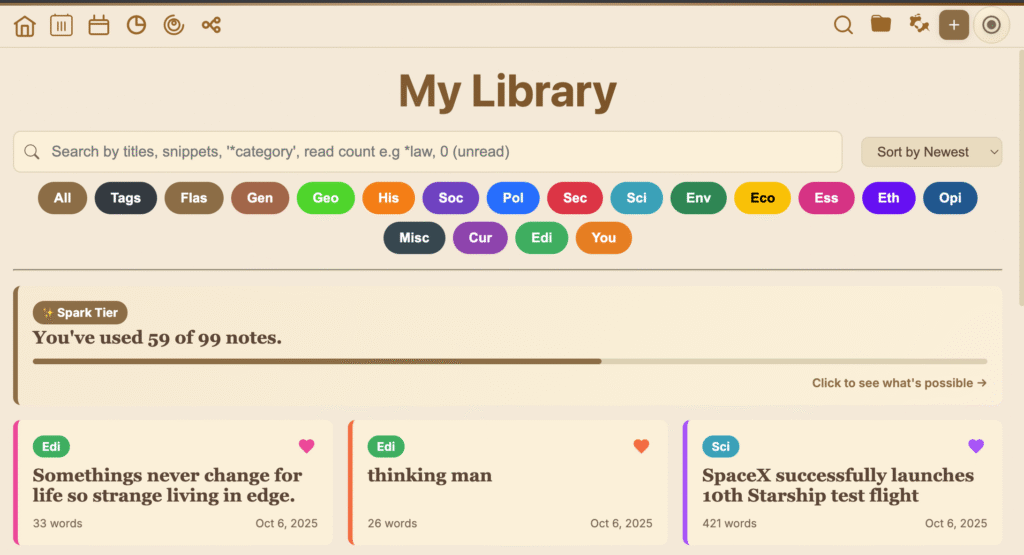
The header at the top is your primary navigation bar. Every icon is a gateway to a powerful feature.

- 🏠 Library: Your home base. Clicking this always brings you back to the main view of all your notes.
- ✅ Tasks & Timer (Ctrl/Cmd + K): Opens the Productivity Hub, your integrated command center for managing to-do lists and running Pomodoro focus sessions. A red badge will appear if you have tasks due today.
- 📇 Flashcards: Your personal learning engine. This is where you’ll find and study all the flashcards you create from your notes.
- 📊 Stats: The dashboard for your second brain. Track your learning streaks, productivity habits, and knowledge retention over time.
- 🕸️ Visual Map: A dynamic graph that visualizes the connections between your ideas, tags, and notes.
- 🧠 Mind Map: A focused tool to review the key highlights and structure of a single note.
- 🔍 Global Search (Ctrl/Cmd + K): The fastest way to find anything, create new items on the fly, and navigate the entire app.
- 📂 Change Folder (Alt + O): Allows you to switch to a different folder of notes.
- ⚙️ Settings: Customize everything from the app’s appearance and editor fonts to advanced features like cloud sync.
- + (New Note Button): The glowing button is your shortcut to create a new note instantly (
Alt + Shift + N). It will stop glowing and change behavior if you reach the note limit on the free tier.
Chapter 2: The Library – Your Knowledge Hub
The Library is where you’ll spend most of your time viewing, organizing, and searching for your notes.
Understanding an Article Card
Each note is represented by a “card” packed with information at a glance:
- Category Badge: A colorful tag showing the note’s subject (e.g., History, Science).
- Read Count (❤️): A heart icon that tracks how many times you’ve marked a note as “read.” The color of the heart evolves as you master the content, progressing through a 10-stage color spectrum from gray (unread) to fiery red, through oranges and purples, and finally to a brilliant emerald green for fully mastered knowledge.
- Word Count & Date: See the note’s length and the date it was last modified.
Mastering the Library Search Bar
This is not just a search box; it’s a powerful filtering tool.
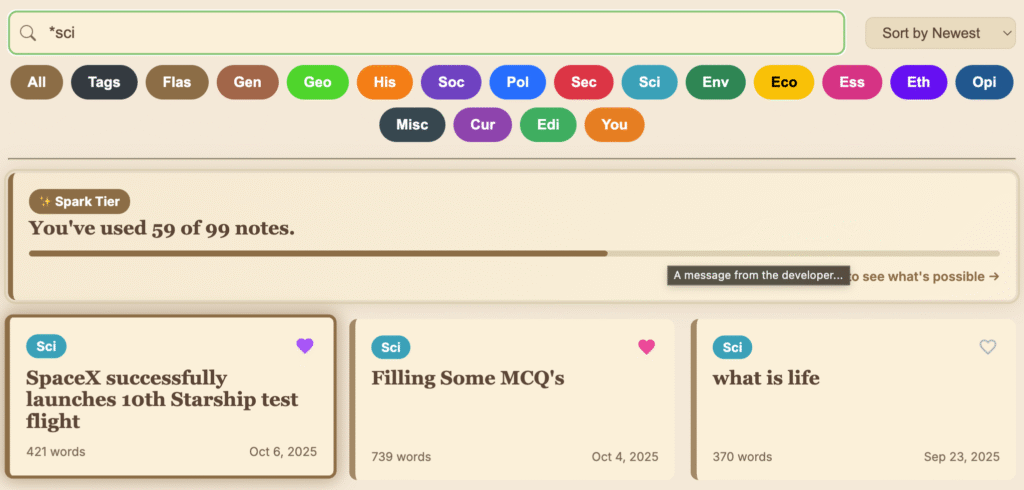
- Basic Search: Type any word to search through note titles and the full text content of your notes.
- Advanced Filtering (Combine them!):
- Filter by Category: Type
*followed by a category name or its first few letters (e.g.,*histfor History). - Filter by Read Count: Type a number. For example,
0finds all unread notes, and3finds notes you have read exactly three times. - Example Combo:
*polity 2will find all notes in the “Polity” category that you have read twice.
- Filter by Category: Type
- Keyboard Navigation: After searching, use the Arrow Keys (↑ ↓) to highlight a result and press Enter to open it.
Sorting and Filtering with Chips
- Sort By: Use the dropdown menu to organize your library by Newest, Oldest, Title (A-Z), or by Read/Unread status.
- Category Chips: These colorful pill-shaped buttons are your fastest way to filter. Click a category like “History” or “Polity” to see only those notes. Click “All” to clear the filter.
Pro-Tip: The “Tags” and “Flashcards” chips are special. They navigate you to their dedicated sections, giving you another quick access point.
The Spark Tier Card
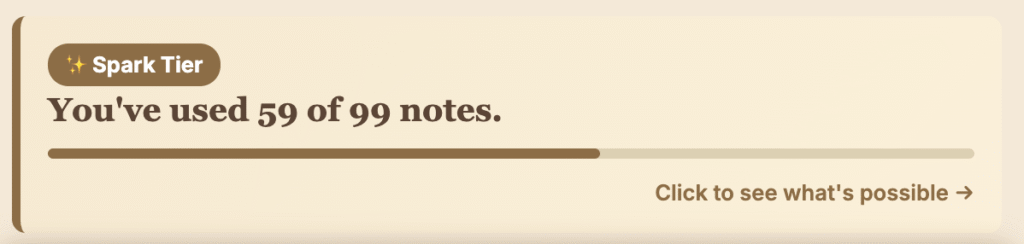
If you are on the free “Spark” tier, you will see a special card at the top of your library tracking your usage. NoteKash’s free tier is generous, but this card will show your progress toward the note limit and serves as a gateway to unlocking unlimited potential.
Chapter 3: The Editor – Where Ideas Come to Life
The editor is your distraction-free canvas, intelligently switching between a clean reading view and a powerful writing environment.
Read Mode vs. Write Mode
- 📖 Read Mode: The default view, optimized for clean, beautiful, and distraction-free reading. All interactive elements like accordions, MCQs, and links are active here.
- ✍️ Write Mode: Click the pencil icon in the bottom control bar to unlock the full power of the editor. This is where you create, format, and structure your thoughts.
The Dynamic Bottom Control Bar
This bar adapts to your current mode, giving you the right tools at the right time.
In Read Mode:

- Go to Category: Jumps to the Category View, showing all highlights from notes in the same category.
- Edit: Switches to Write Mode.
- Heart Icon: Click to mark the note as “read” and advance the read count. Double-click it to reset the count to zero.
- Copy Highlights: Copies the note’s title and all highlighted text (
==highlight==) to your clipboard. - Export HTML: Downloads a formatted, self-contained HTML file of your note.
- Fullscreen (F): Enters a distraction-free, fullscreen reading experience.
In Write Mode:

- Text Colors: Select through different text colors
- Insert Table and Accordian (QnA): For notes.
- Save & Read (
Ctrl/Cmd + S): Saves your changes and switches back to Read Mode. - Category Selector: Change the note’s category.
- Delete Article: Permanently deletes the current note (with confirmation).
- Formatting Pop-ups: Hover over the List or Text Format icons to reveal pop-ups for bullets, bold, italic, and underline. Also add Checkboxes.
- Immersive Writing Mode: for immersive experience.
The Pop-Up Selection Toolbar
When you select text in Write Mode, a floating toolbar appears with instant formatting tools:

- Color Palette: A row of colored circles to apply one of the six main highlight colors.
- Cycle Colors (
Ctrl/Cmd + Shift + 1): A special button that cycles through all available highlight and text colors. - Create Tag (
[[...]]): Instantly turns your selection into a clickable SuperTag. - Create Cloze (
{{...}}): Instantly turns your selection into a fill-in-the-blank flashcard. - Clear Formatting: Removes all styling from the selected text.
- You can also move around the PopUp Toolbar and Lock it.
Markdown Magic: Effortless Formatting
Start a new line with these characters and press Space for lightning-fast formatting:
| Shortcut | Result |
* or - + Space | Bulleted List |
1. + Space | Numbered List |
> + Space | Blockquote |
## + Space | Heading 2 |
--- + Enter | Horizontal Divider |
==text== | <span class=”highlight-1″>Yellow Highlight</span> |
==text==g | <span class=”highlight-2″>Green Highlight</span> |
==text==b | <span class=”highlight-3″>Blue Highlight</span> |
==text==r | <span class=”highlight-4″>Red Highlight</span> |
::text_r:: | <span class=”text-red”>Red Text</span> |
::text_g:: | <span class=”text-green”>Green Text</span> |
::text_b:: | <span class=”text-blue”>Blue Text</span> |
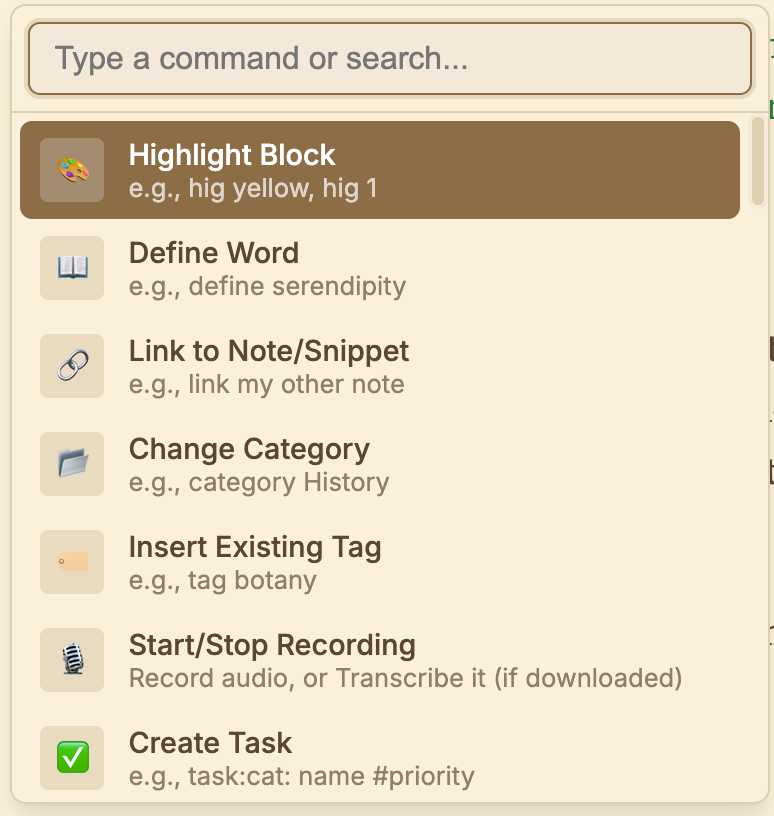
The Command Palette (/): Your Writing Editor’s Superpower
In Write Mode, simply type “/” to open a menu of powerful “slash commands.” This is the fastest way to insert rich, structured content without ever leaving your keyboard.
Key Content Blocks:
/link [note name]: Searches for and inserts a link to another note. This is powerful way to connect notes and visualize them with powerful preview mode./table 3x4: Inserts a table with 3 rows and 4 columns. You can specify any dimension./accordion: Inserts a collapsible Q&A block, which automatically becomes a flashcard./cloze: Make fill in blanks Flashcards./mcq: Inserts a full multiple-choice question block, which also becomes a flashcard./checkbox: Inserts a to-do item for simple checklists within your notes./bullet,/numbered: Create lists./timeline: Inserts a beautiful, vertical timeline block to visualize chronological events./chart: Opens a creator to build and insert bar, line, or doughnut charts./textile: Inserts a “Text Tile,” a visually distinct block for quotes, key ideas, or summaries./deck: Inserts a “Decktile,” a container that can hold multiple Text Tiles in a grid or stack./convert: Magically transforms a bulleted list into a Decktile. Or convert Text to MCQ/pdf: Opens your file explorer to attach a PDF directly into your note. While you can later read in our PDF reader in Read mode./record: Starts recording audio from your microphone, embedding it in the note. It also has power to Transcribe Audio notes using powerful Whisper AI model which you can download on-device./code: Inserts a pre-formatted block for code snippets./define: Use embedded dictionary to find any word meaning, synonyms etc. or add it to your notes./h1,/h2,/h3: Quickly apply heading styles./date,/time,/now: Inserts the current date, time, or a full timestamp.- /wordcount, /readtime, /toggle, /calender, /task & Other Power Command…
Working with Images and Audio
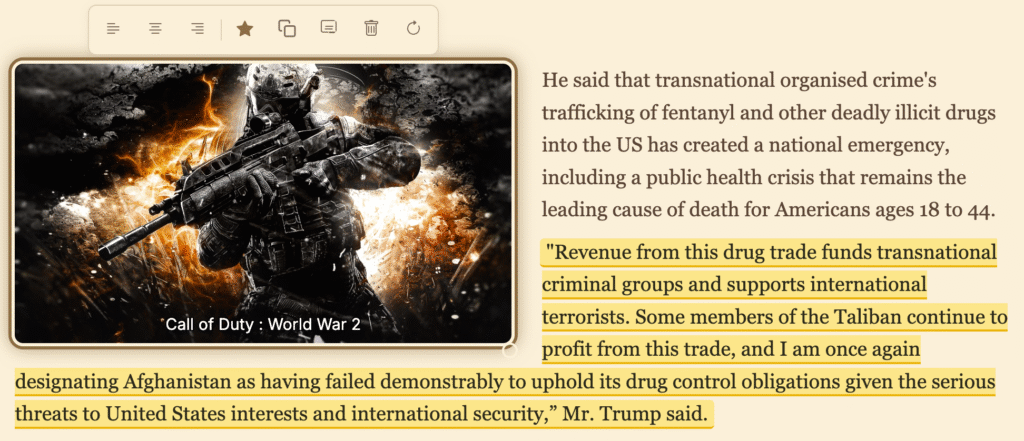
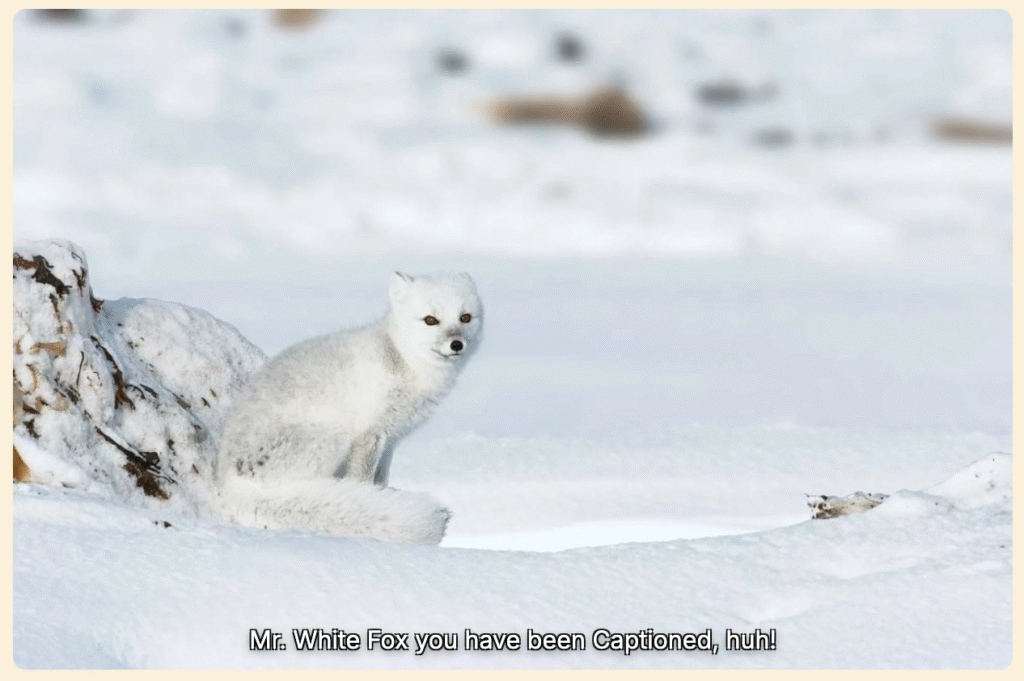
- Images: Drag and drop an image file into the editor, or copy an image from the web and paste it. Click an image in Write Mode to reveal the Image Toolbar to align, resize, highlight (for Mind Maps), add a caption, or delete it. The way NoteKash treats images is really really powerful, you can highlight image and convert them into Snippet, you can add Captions to images, you can even Arrange them in Newspaper style in your Editor or you can simply add them to your MindMap. Images are searchable using our power search feature.
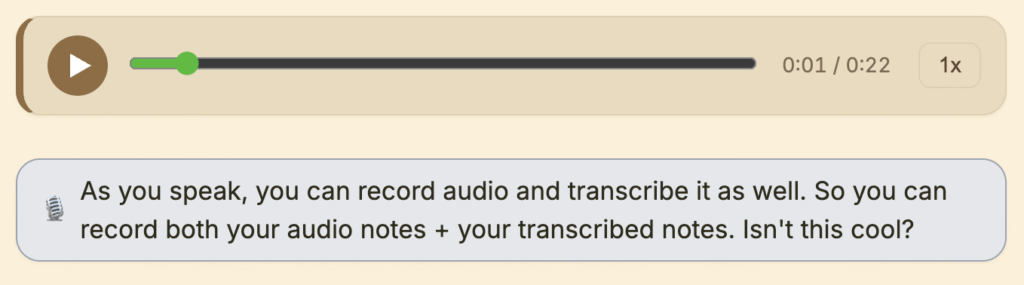
- Audio: Use
/recordto create an audio block. Click the microphone to start/stop recording. If you’ve downloaded an AI model in Settings (Premium feature), a “Transcribe” button will appear, converting your speech to text with one click. The Transcribed notes work as magic, using the modern Whisper AI, which you get Unlimited Transcribing (no strings attached :), Transcribed notes actually are converted into Textile format, where you modify them, hide/unhide them or Convert them into MCQ (well your imagination is the limit). Only this feature alone is so cool, that people are selling you subscriptions on it but you get it even on our Lower Tier with all powerful features you just came across.
Chapter 4: The Productivity Suite 🚀
NoteKash is also your dedicated focus partner, with tools to manage your time and tasks seamlessly.
Global Search (Ctrl/Cmd + K): Your App-Wide Command Center
This is your ultimate shortcut. Press it from anywhere to open the The Ultimate Search Engine.
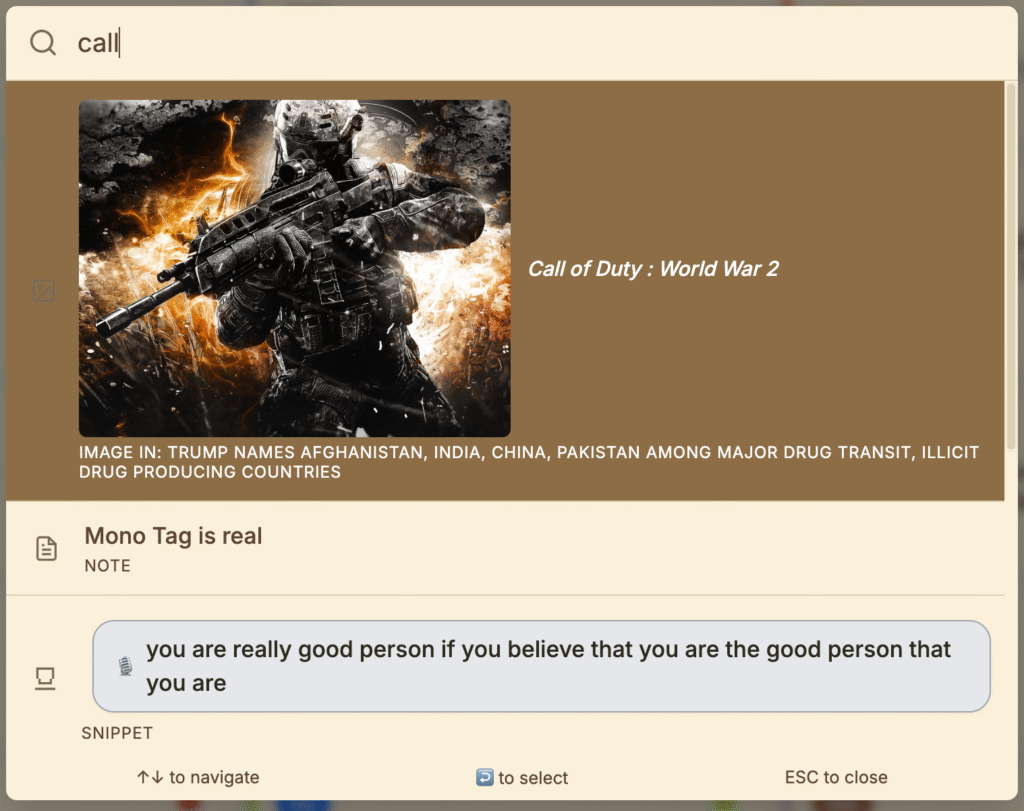
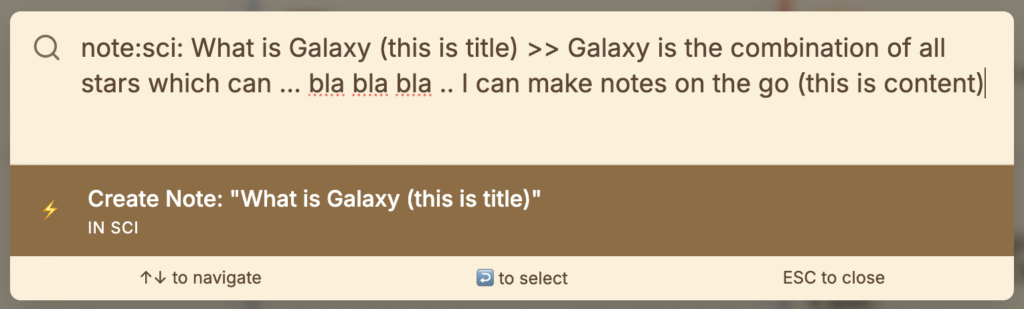
- Search Everything: Instantly search the titles and content of all Notes, Tasks, Flashcards, Tags, and Snippets. Absolutely everything that can be written can be searched. You can even filter your search e.g “flashcard: car” will only search for “car” word in all flashcards you created. We use a powerful search algorithm which actually rates every search item according to User.
- Create Tasks on the Fly: Type
task: Review Chapter 5 #highand press Enter. A high-priority task named “Review Chapter 5” will be created. The format istask:[category]:[title]#[priority]. - Create Notes on the Fly: Type
note:History:The Roman Empire >> The fall of the Western Roman Empire...and press Enter. A new note is instantly created with the correct category, title, and content. - Navigate with Speed: Type
%to see a list of navigation commands. For example,%statsjumps to the Stats Dashboard, and%newcreates a new article.
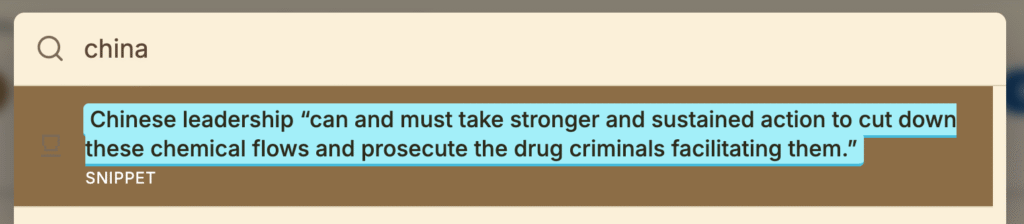
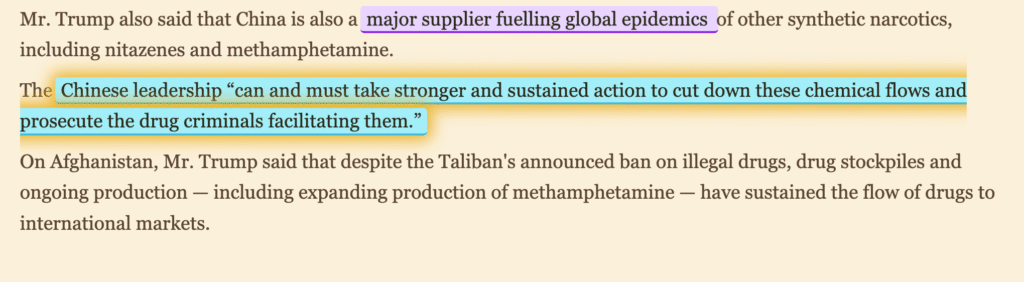
- The Search doesn’t only find items (snippets/flashcard etc.) It actually takes you to place where exactly your Item is located with simple click/enter. It is like the powerful buddy, which never forgets where you written something.
The Productivity Hub: Your Mission Control
Opened with the ✅ icon or !task in Global Search, this is where you manage your day. You can also Open productivity hub from any window using shortcut “Ctrl+;”.
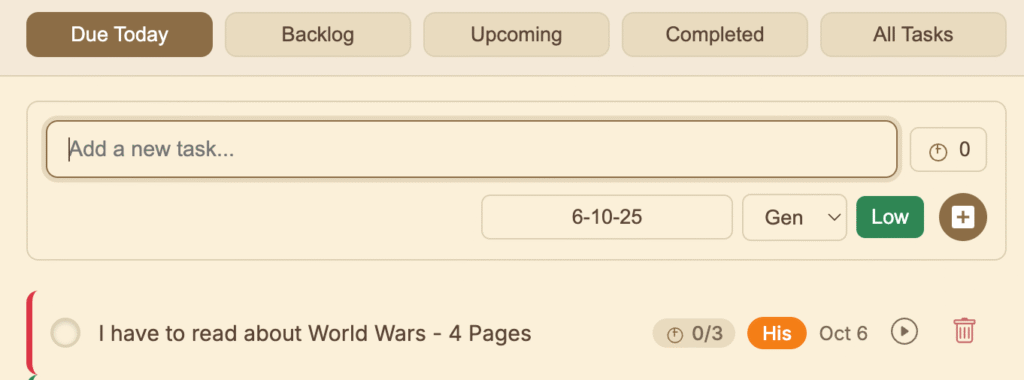
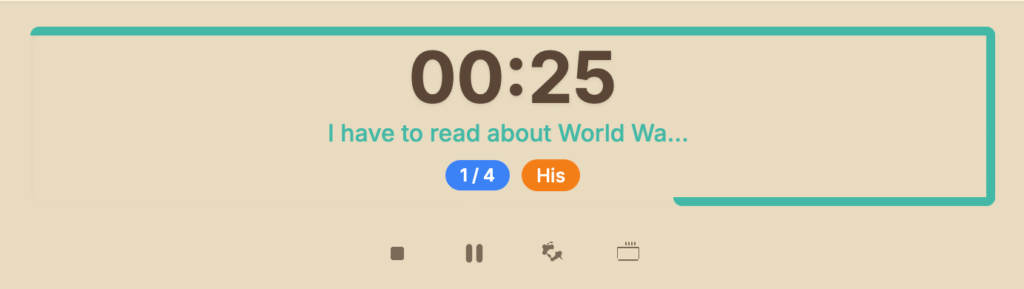
- Task Management: Add tasks with due dates, priorities, and categories. The filters at the top let you instantly see what’s due Today, what’s Upcoming, what’s in your Backlog (overdue), and what you’ve Completed.
- Pomodoro Timer: Every task has a play icon next to it. Click it to start a Pomodoro focus timer linked directly to that task.
- Zen Mode: During a Pomodoro session, click the coffee cup icon to enter Zen Mode—a beautiful, minimalist, full-screen timer designed for deep, uninterrupted focus.
- Incredible: Stop the digital clutter of juggling separate apps for your to-do list and your focus timer. In a world of endless distractions, focus is a superpower. The Productivity Hub is your training ground, uniting a robust task manager with an intelligent Pomodoro timer into a single command center for your work. Launch a focus session for any task on your list and conquer your goals one session at a time. Every minute is tracked, beautifully visualized in your Stats Dashboard, and transformed into powerful insights. It’s not just a feature; it’s your new engine for deep work which we all wish we had back in college.
Hub Keyboard Shortcuts (when not typing):
- Timer:
S(Play/Pause),A(Stop),T(Settings),Z(Zen Mode). - Task Composer:
D(Focus Date),F(Cycle Priority),C(Increase Pomo Goal),X(Reset Pomo Goal). - Quick Start Timer:
Q,W,E,Rwill instantly start a timer for the first four tasks in your current view, respectively.
Chapter 5: The Learning Engine 🧠
NoteKash’s greatest strength is its ability to seamlessly transform your notes into insights with our powerful and smart, Automated Learning Engine (ALE). ALE works in background to convert your note interactions into the powerful learning tool. It is a really powerful engine, which converts your snippets and tags – into Flashcards, MindMap and VisualMap. ALE also works in Sync with Search Engine, to give a seamless AI experience to user.
How to Create Flashcards Effortlessly
You don’t create flashcards in a separate menu; you create them organically as you write.
- Cloze Deletion: This is for “fill-in-the-blank” cards. Simply wrap the text you want to hide in double curly braces:
The powerhouse of the cell is the {{c1::mitochondria}}. - Accordions: Every
/accordionblock you create automatically becomes a question-and-answer flashcard. - MCQs: Every
/mcqblock you create is automatically converted into a multiple-choice flashcard.
The Flashcard Window
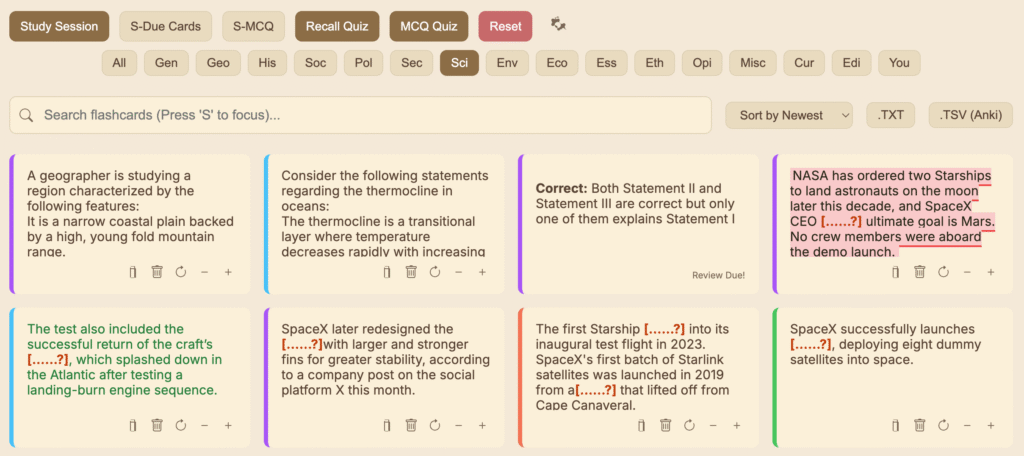
Click the 📇 icon to enter your learning center.
- Interaction: Click any card to flip it. Right-click for options like deleting it or resetting its progress.
- Filtering: Use the category chips at the top to filter by deck (e.g., “History flashcards”).
- Sorting: Sort your cards by SRS status, newest, oldest, or even find your most difficult “Leech” cards.
- Export for Flashcards: Use the .TSV (Anki) button to export your cards in a format that the popular flashcard app like Anki/Memrise/Quizlet can import.
The Study Session (SRS Explained)
Click “Study Session”. NoteKash uses a powerful Spaced Repetition System (SRS), a scientifically proven algorithm that schedules cards for you to review at the perfect moment—just before you’re about to forget them.
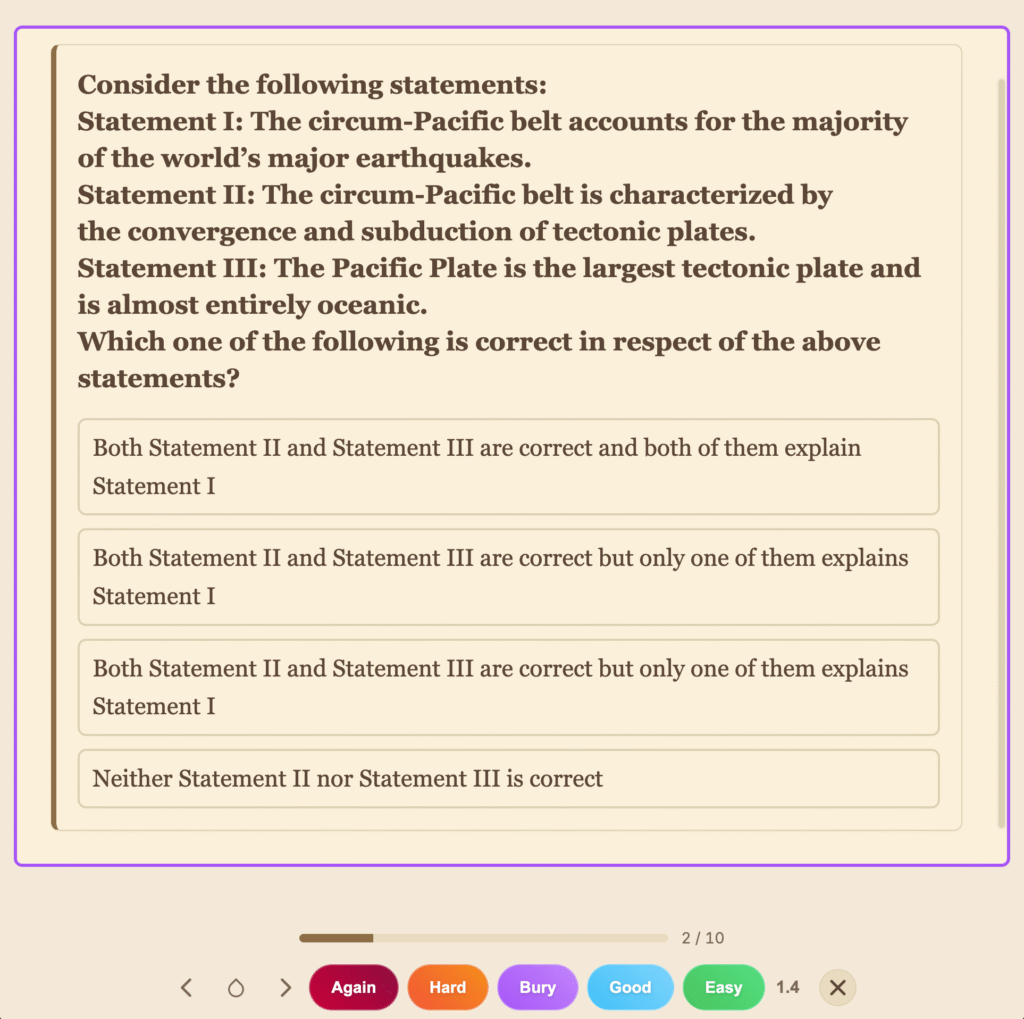
- How it Works: Review a card, reveal the answer (Spacebar), and honestly rate how well you knew it using the buttons at the bottom. The app handles all the complex scheduling.
- Ratings:
- Again: You forgot. The card will come back soon.
- Hard: You struggled. It will come back sooner than “Good”.
- Good: You remembered it correctly. This is the standard pass.
- Easy: You knew it instantly. It will be scheduled far in the future.
- Bury: A special rating that hides the card for 24 hours.
- Shortcuts:
Spacebar/Enter to Flip,Arrow Keysto navigate, and1-5to rate (1= Easy, a =5= Again).
The Recall Quiz & MCQ Quiz
Click “Recall Quiz” for a scored test of 10 intelligently selected cards (Cloze an Accordian) while “MCQ Quiz” is for testing 10 intelligently selected MCQ Quiz questions. Your 10-card quiz is built by a smart algorithm to maximize learning, prioritizing cards that are new or due for review based on your past performance. It then intelligently mixes in a few random cards from your collection to ensure a well-rounded and effective session. This is a fantastic way to check your knowledge and build a learning streak. Your scores and daily streaks are all tracked in the 📊 Stats dashboard.
Chapter 6: The Nexus of Your Knowledge 🌐
Information is just a list of facts. True knowledge is born when you see the connections between them. Most note apps leave you with a digital filing cabinet—organized, but lifeless. NoteKash gives you a living, breathing extension of your mind.
This chapter unveils the heart and soul of your Second Brain: the Visual Map and the Mind Map. These aren’t just features; they are powerful lenses that transform your collection of notes into a dynamic web of insight, ready for you to explore, question, and expand.
The Visual Map (🕸️): Your Personal Galaxy of Ideas
Imagine stepping back and seeing all your thoughts not as a list, but as a constellation of interconnected stars. That is the Visual Map. It’s your personal detective’s evidence board, your strategic command center, and your neural network, all in one. It doesn’t just show you what you’ve written; it reveals what you know and, more importantly, how you know it.
Key Concept: The Visual Map is an emergent structure. You don’t “build” it manually. It grows organically and intelligently every time you use a
[[SuperTag]]in your notes, creating a powerful, automated visualization of your knowledge.
How to Read Your Galaxy
Every element on the map has a purpose, telling a visual story about your knowledge structure:
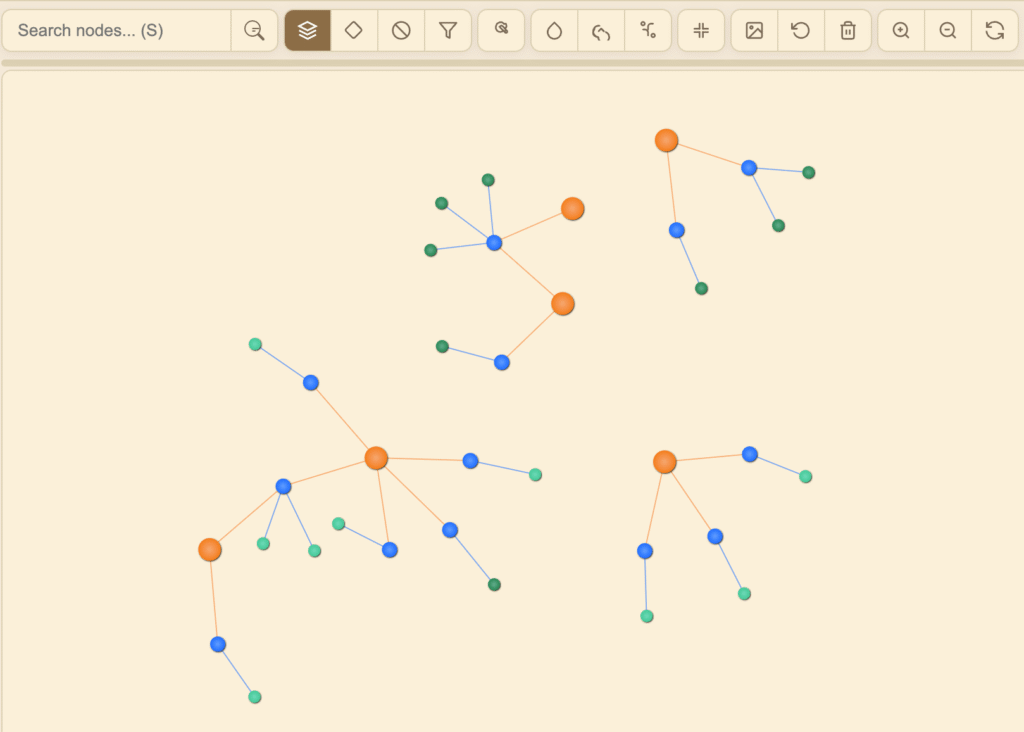
- 🟠 Category Nodes: These are the bright, foundational hubs of your map. Think of them as the major continents of your knowledge, like “History” or “Science.”
- 🔵 Tag Nodes: These are the brilliant blue connectors—the bridges between continents. A single
[[SuperTag]]like[[Roman Empire]]can link ideas from History, Polity, and even Art. - 🟢 Article Nodes: These green points are the individual cities and towns—the specific notes where your ideas live.
- ⚪️ Orphan Nodes: These gray nodes are your hidden gems! They represent notes that haven’t been tagged yet. The map makes it effortless to spot these disconnected ideas, giving you the opportunity to integrate them into your web of knowledge.
An Interactive Universe of Discovery
Your knowledge map is not a static image; it’s a playground for your curiosity.
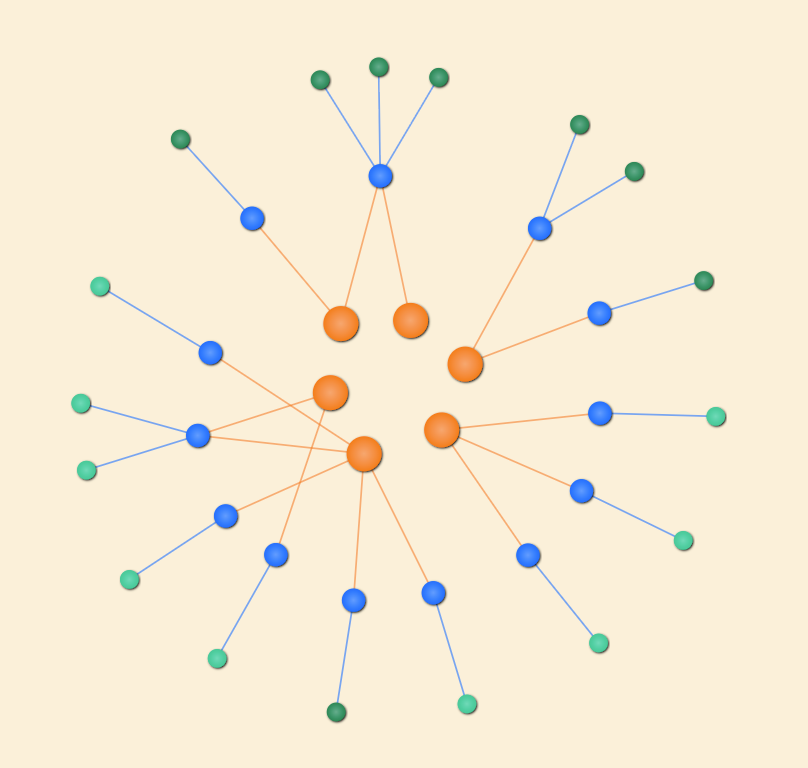
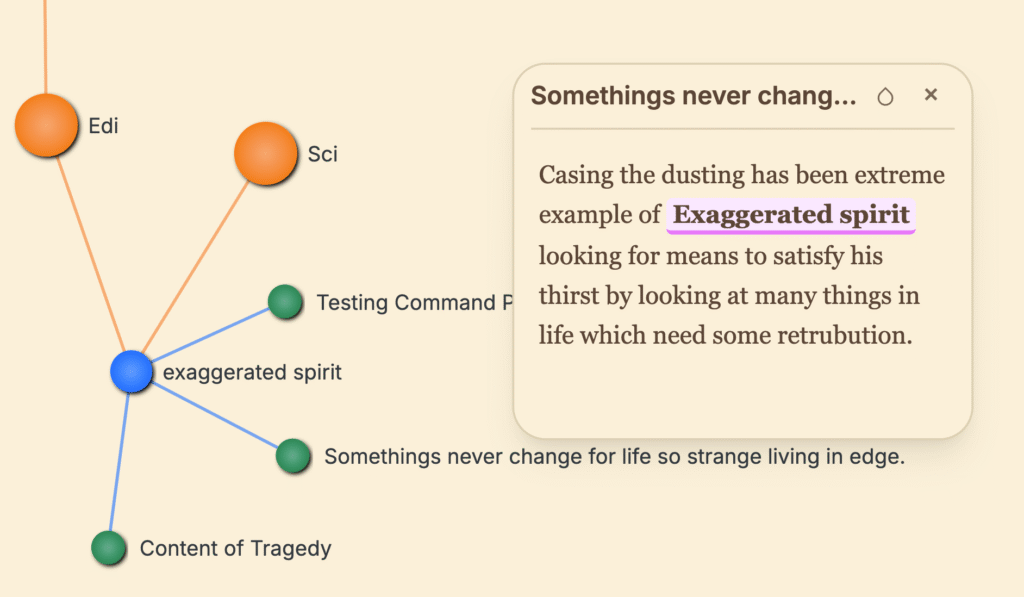
- Explore & Organize: Click and drag any node to rearrange the graph to your liking. Watch as the physics-based simulation gracefully settles the connected nodes into a new, clear structure.
- Focus & Simplify: Feeling overwhelmed? Simply click on a Category or Tag node to instantly collapse its branches, hiding the details. Click it again to expand and dive back in. This allows you to move from a 10,000-foot view to ground-level detail in a single click.
- Cycle & Isolate: Press
Cto cycle through your categories, instantly bringing one into sharp focus while dimming the rest. It’s like putting a spotlight on one area of your expertise.
The Synthesis Canvas: Where New Ideas Are Born
This is where the magic happens. Click on any green article node.
A Sticky Note instantly appears on your canvas, pre-filled with a smart snippet from that article. It’s not just a popup; it’s a tangible piece of your knowledge that you can move around.
Now, do it again. And again.
Suddenly, you have three, four, or five key ideas from different notes laid out before you on a single, infinite canvas. You can arrange them, compare them, and see relationships you never noticed before. This is the act of synthesis—the moment you combine existing knowledge to create something entirely new. It’s the most powerful feature of your Second Brain, turning passive review into active creation.
Power-User Shortcuts
- Focus Search:
S - Pan the View:
Arrow Keys - Reset View:
R - Cycle Category Focus:
C - Lasso Tool (Premium):
Lto draw a selection around multiple nodes, allowing you to move entire clusters of ideas at once. - Save Snapshot (Premium):
Fto save the current layout and state of your map as a beautiful, shareable image.
The Mind Map (🧠): An Instant X-Ray of Your Knowledge
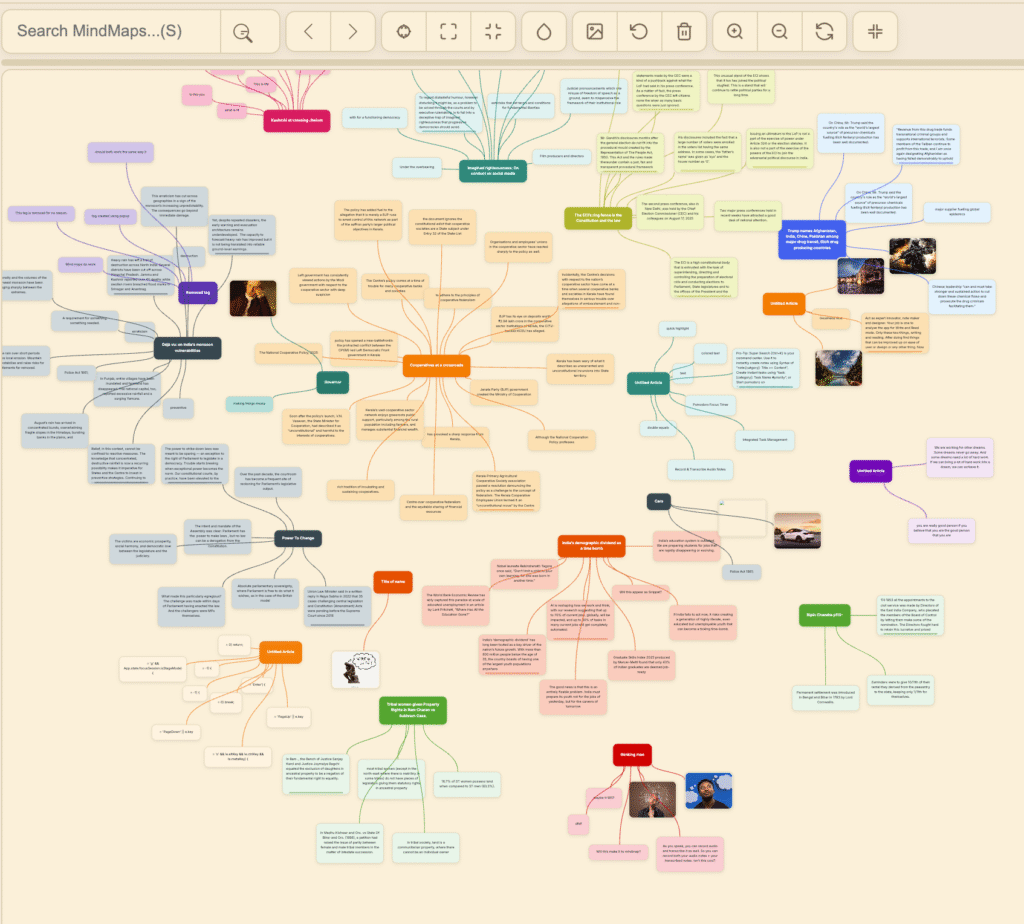
If the Visual Map is the galaxy, the Mind Map is a powerful telescope focused on a single star. It’s an automatic summary generator that takes a dense, long-form article and instantly transforms it into a clean, hierarchical diagram of its core ideas. Stop re-reading entire documents; get the essence in seconds.
From Highlights to Hierarchy
The process is effortless and happens automatically as you work:
- While writing or reading, you highlight key concepts using
==double equals==. - Open the Mind Map view.
That’s it. NoteKash instantly generates a beautiful mind map with the article’s title as the central root and every single highlight as a connected child branch. It’s the skeleton of your article’s argument, laid bare for rapid review.
Visual Storytelling with Colors & Images
Your mind maps are not just black and white. They are rich, visual stories that you create automatically.
- Colored Branches: Use different highlight colors in your notes (
==text==gfor green,==text==bfor blue, etc.). Each color will create a visually distinct set of branches on your mind map, allowing you to color-code different themes, arguments, or types of information within a single note. - Image Nodes: Did you highlight an important diagram or a powerful image in your note? It won’t just be a text reference; the actual image will appear as a visual node in your mind map, creating an incredibly rich and memorable summary.
The Ultimate Review & Rehearsal Tool
The Mind Map is your secret weapon for rapid recall and preparation.
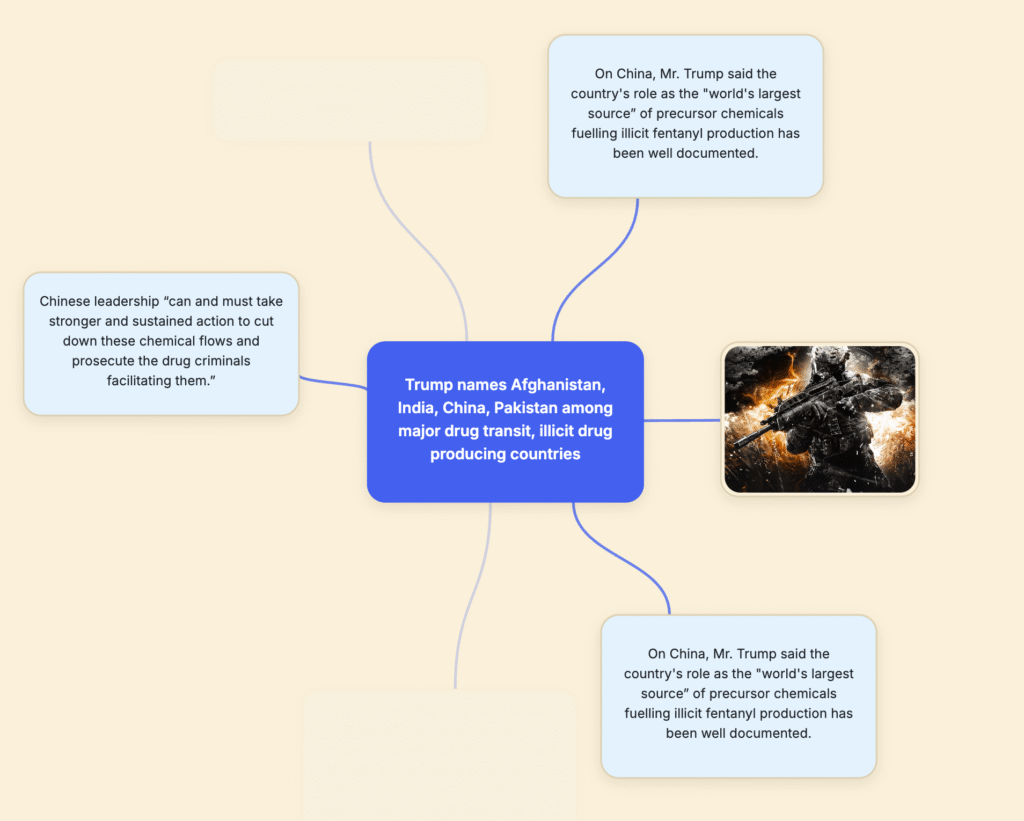
- Memorize: Hide/Unhide Mindmap Node to give your ability to Recall and Memorize on th Go
- Before an Exam: Quickly cycle through the mind maps of your key study notes to reinforce the main arguments and definitions.
- Before a Meeting: Review the mind map of your project brief to instantly recall the key takeaways and discussion points.
- Before Writing: Look at the mind map of your source material to easily structure your own arguments and ensure you’ve covered all the critical points.
Quick Navigation
- Previous / Next Map:
J/K - Search for a Mind Map:
S - Save Snapshot (Premium):
Fto capture the current mind map as a clean image file, perfect for sharing or embedding elsewhere.
Chapter 7: Advanced Tools & Presentation Mode
Go beyond basic notes with professional-grade tools for presenting and working with different media.

Working with PDFs
- Attach a PDF: In Write Mode, type
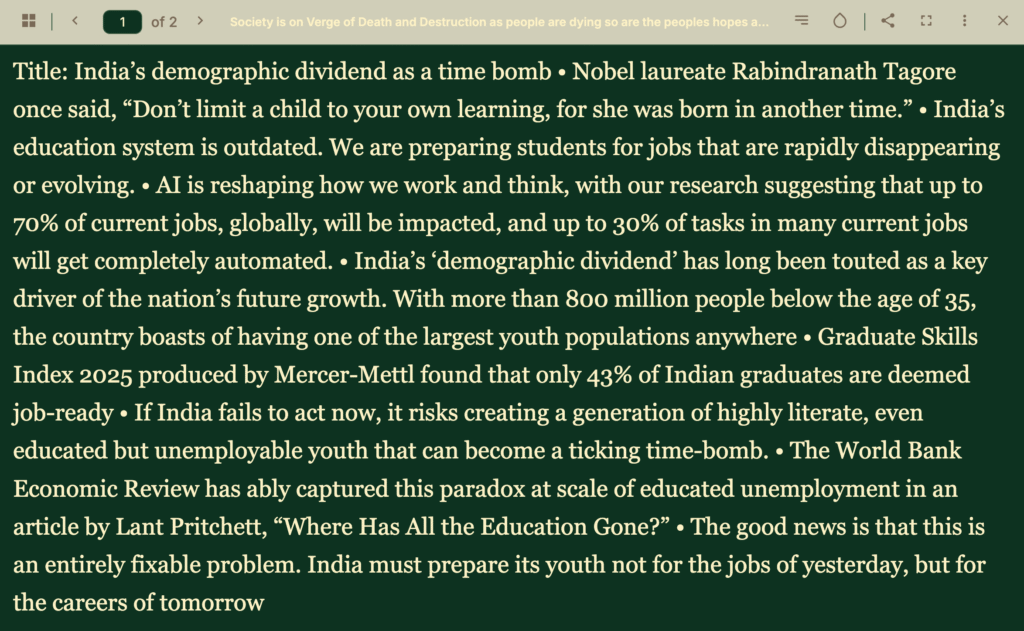
/pdfand select a file. It will be embedded as a clean “pill” inside your note. - The PDF Viewer: In Read Mode, click the PDF pill to open it in a powerful, full-screen viewer. Here you can:
- Navigate pages with buttons or Arrow Keys.
- Zoom in and out with buttons or + / – keys.
- Toggle a thumbnail sidebar (
T) for quick navigation. - Enter a clean, readable Text View of the PDF’s content.
- Capture Page: Copy a high-resolution image of the current page (or the formatted text in Text View) directly to your clipboard.
Presentation with Stage Mode
Turn any note with highlights into a captivating presentation for different aspect ratio (screen sizes).

- Go to the Category View for any category.
- Find the card for the note you want to present.
- Click the “Enter Focus Mode” icon (looks like expanding arrows).
This launches Stage Mode, where each highlight (==text==) becomes a beautiful, focused slide.
- Navigation: Use Arrow Keys to move between slides.
- Annotation (
D): Draw directly on your slides with pens, shapes, and an eraser to emphasize points. - Presentation Tools: Press
Lfor a virtual laser pointer,Bfor a blackout screen, andPto copy an image of the current slide to your clipboard. - Cinematic Reveal (
G): Toggle a beautiful word-by-word reveal effect for your text, perfect for dramatic reveals. - Ambiance Themes: Cycle through dozens of beautiful, high-contrast color themes to set the perfect mood for your presentation or reading session.
Chapter 8: Data, Customization & Premium Features
NoteKash gives you full control over your data and your experience.
The Settings Window (⚙️)
- Change Folder: Select a different folder for your notes.
- Backup & Restore: Export your entire library, including all notes, tasks, and settings, to a single
.zipfile. You can import this file anytime to restore your second brain. - Appearance: Customize the app’s theme (Light, Dark, Sepia, or a custom background image – Premium), and fine-tune the editor’s font family, font size, and line spacing.
- Dropbox Sync (Premium): Set up automatic, seamless cloud backup and sync between devices.
Ascension: Unlocking Premium Features
NoteKash offers a generous free “Spark” tier. To unlock unlimited notes, flashcards, advanced commands, and powerful features like Dropbox Sync, you can purchase a license. Click the badge icon in the top right of the header to manage your license or see the options for upgrading. This is a one-time purchase, not a recurring subscription.
Congratulations! You’ve completed the official guide to NoteKash v2. You now have all the knowledge you need to start building a powerful, personal, and permanent second brain. Happy thinking!